 ModelPaddock
For people who run more than one AI
Every AI agent and local model. One window.
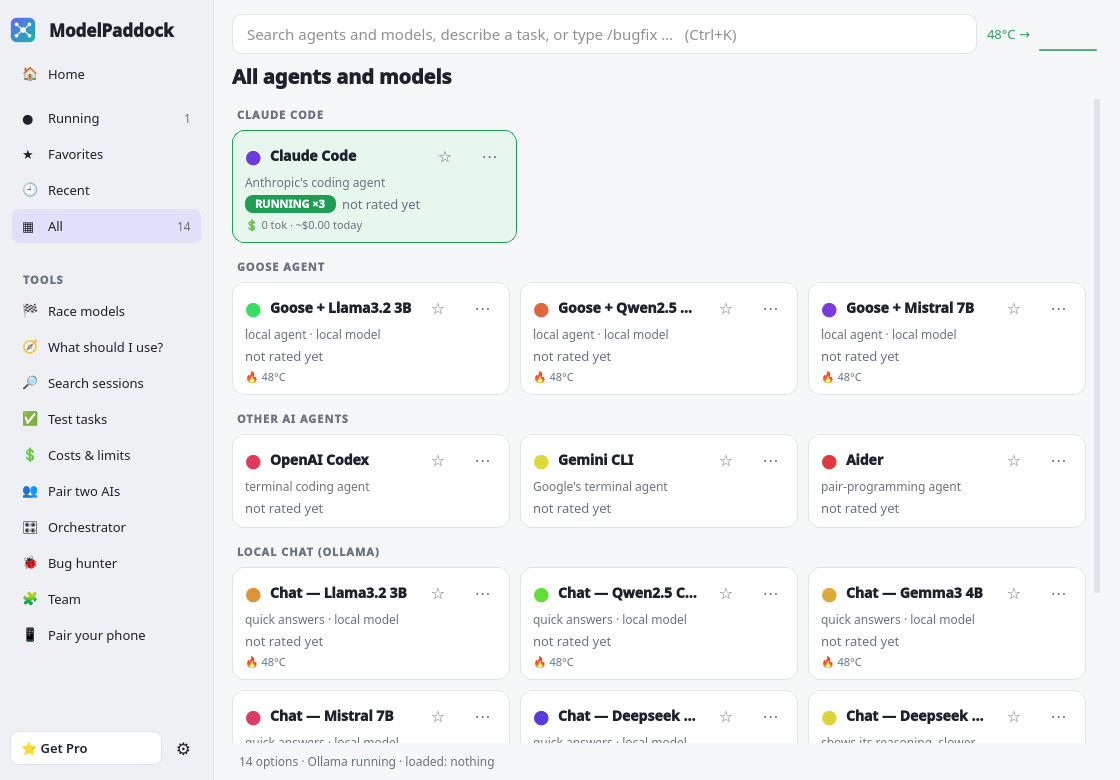
ModelPaddock finds Claude Code, goose, Codex, Gemini CLI and your Ollama models on your computer, opens them in your terminal, and shows what is running, what it costs and when you will hit a limit.
Free to use, no account needed. Linux first; macOS and Windows in early access.
What makes ModelPaddock different
Other tools launch agents or track tokens. Here are three things you won’t easily find elsewhere.
Keeps your laptop cool
Running models on a laptop gets hot. ModelPaddock watches CPU/GPU temperature, holds local models until the machine cools down and stops them before it overheats.
Save & move between accounts
Hit a usage limit mid-task? One click saves the conversation and continues it on your other account, or in goose, Codex or Gemini. No copying, no starting over.
Made for beginners too
Never used a terminal? Setup asks how comfortable you are and shows only what you need. A Help buddy explains commands in plain words and always asks before running anything.
Launch it, find it again, know what it costs
Every agent and model gets a card. Click to open it. Click again to jump straight back to the window it is in.
Finds everything by itself
Agent command-line tools, goose providers and your Ollama models show up as cards. New ones appear within 30 seconds.
One click to the right window
Already running? The click brings that exact terminal tab to the front, in the agent’s own color.
Race your models
One prompt, two or three models side by side, live speed. Your winners teach ModelPaddock which model to pick for you next time.
Tokens and limits in sight
See each Claude account’s usage and context size, and get warned before you run out instead of being cut off mid-task.
How it works
- 01
Install it
Download the app for your computer, or one command with pipx. Your settings live in one plain text file you can edit.
- 02
It finds your AIs
Everything you have installed shows up on its own, and new agents and models are added as you install them.
- 03
Click to launch, click to return
Each AI opens in your own terminal. Lost it behind ten windows? Click its card. Closing the window keeps ModelPaddock in your tray.
Free to use. Pro when you need the numbers.
The core app is free and stays free. Pro starts with a 7-day trial built into the app, no card needed.
Free
$0
- Finds and launches your agents and models
- Jump back to the right window, stop, open another
- Model race and speed ratings
- Ctrl+K quick launch
- Heat guard, usage time, widgets and tray
Pro 7-day trial
$5 / month
or $39 once for lifetime 1.x updates
- Everything in Free
- Costs & limits: spend per account and model, budgets, and a run-out forecast
- “What should I use?” picks the cheapest option that is good enough
- Search every past session across accounts and reopen it
- Your own test tasks to score models on your work
Questions
Does it send my conversations anywhere?
No. Search, costs and ratings are built from files already on your computer and stay there. ModelPaddock only starts programs you already have.
Is the cost number what I pay?
No. It is what the same tokens would cost at API prices. On a subscription plan it shows the value you get, and it powers the limit forecast.
Which systems does it run on?
Linux today, with the most features on KDE Plasma. macOS (Apple silicon and Intel) and Windows builds are in early access.
Do I need a graphics card?
No. Cloud agents work on any computer. Local models run faster with a GPU, and ModelPaddock shows which ones are loaded on it.
I’m new to the terminal. Is this for me?
Yes. You click a card and ModelPaddock opens the AI in your terminal for you. A beginner setup and a Help buddy that explains commands in plain words (and always asks before running anything) are coming during early access.
Download ModelPaddock
Installing
Linux: save the file, then right-click it → Properties → Permissions → Allow executing as program (or run chmod +x ModelPaddock-*.AppImage), and double-click it.
Mac: open the .dmg and drag ModelPaddock into Applications. The first time, right-click the app and choose Open, then Open again (it isn’t signed with Apple yet). Not sure which Mac you have? Apple menu → About This Mac: “Chip: Apple M…” is Apple silicon; “Processor: Intel” is Intel.
Windows: run the installer. If a blue “Windows protected your PC” box appears, click More info → Run anyway (it isn’t signed yet). The portable .zip needs no install.
Each file’s SHA-256 checksum is listed so you can check your download.
Get early access
Leave your email and we’ll send one message when your download is ready. No spam, unsubscribe anytime.
We keep your email, the system you picked, your country and the sign-up time, only to send your download link. Ask us and we delete it.